Driveworks
Table of Contents
Unlocking SOLIDWORKS Automation with DriveWorks
In today’s fast-paced manufacturing landscape, driveworks emerges as a transformative tool for SOLIDWORKS users seeking to automate repetitive design tasks. As the authorized reseller and expert integrator, we at GSC 3D help mid-market and enterprise manufacturers in aerospace, automotive, and industrial sectors streamline SOLIDWORKS design automation. Our nationwide support from headquarters in Germantown, Wisconsin, ensures seamless deployment of CAD configuration tools that reduce design time and boost efficiency.
DriveWorks automates model generation based on predefined rules and data inputs, while DriveWorksXpress offers a free, built-in option for basic automation needs. DriveWorks Pro extends these capabilities for complex configurations. It supports complex assemblies, variant management, scalable automation, and enterprise deployment workflows that significantly reduce manual errors. We support implementation through consulting, SOLIDWORKS CAD Manager’s Bootcamp training, and integrations like DELMIAWorks ERP for end-to-end manufacturing solutions. This guide explores variants, benefits, implementation steps, and best practices to help you leverage these tools effectively.
As emerging CAD trends incorporate AI enhancements for smarter automation, DriveWorks aligns perfectly by enabling rule-based intelligence that accelerates product configuration. Discover how our expertise can optimize your workflows–contact us to get started.
Fundamentals of DriveWorks and Its Variants
DriveWorks serves as a powerful rule-based automation add-in for SOLIDWORKS, enabling users to streamline repetitive design tasks by generating configurations from spreadsheets or forms. This tool transforms manual processes into efficient, automated workflows, particularly valuable for manufacturers in aerospace and automotive sectors dealing with variant designs. At GSC 3D, we guide clients through selecting the appropriate DriveWorks variant to enhance their CAD productivity without overwhelming their existing setups.
What DriveWorks Brings to SOLIDWORKS Users
DriveWorks revolutionizes how SOLIDWORKS users approach design automation by automating the creation of part, assembly, and drawing variants based on predefined rules. As a SOLIDWORKS automation add-in, it eliminates tedious manual adjustments, allowing engineers to focus on innovation rather than repetition. For instance, in manufacturing scenarios like producing customized aircraft components, DriveWorks can generate hundreds of configurations from a single master model using input parameters from forms or external databases.
The core prerequisites include a valid SOLIDWORKS license and basic familiarity with the software’s configuration tools. We recommend verifying your SOLIDWORKS version compatibility before implementation, as DriveWorks integrates seamlessly with Professional or Premium editions for optimal performance. Our team at GSC 3D offers consultations to assess these needs, ensuring your automation journey starts on solid ground. This foundational setup not only saves time but also reduces errors in complex design environments.
Exploring DriveWorks Pro and DriveWorksXpress
driveworks pro and driveworksxpress represent the two primary variants, each tailored to different levels of automation complexity. DriveWorksXpress, the entry-level option included free with SOLIDWORKS, provides basic form-driven rules for simple configurations, ideal for smaller teams handling internal data only. It requires no separate installation, activating directly within the SOLIDWORKS interface for quick setup.
In contrast, DriveWorks Pro extends capabilities to advanced rules-based automation, supporting external data integration from spreadsheets, databases, or ERP systems like DELMIAWorks. This version demands a standalone installer and licensing, but it unlocks features for enterprise-scale automations, such as batch processing and custom interfaces. Drawing from official documentation, DriveWorksXpress limits users to SOLIDWORKS-internal rules, while Pro enables broader integrations that we at GSC 3D frequently deploy in manufacturing workflows.
To illustrate, a small automotive parts fabricator might start with DriveWorksXpress for basic part variants, whereas larger operations benefit from Pro’s depth. Our solidworks automation services help evaluate which variant aligns with your business size, providing hands-on support for installation and initial rules setup.
For businesses of varying scales, choosing between these variants depends on automation needs and team expertise. Small to mid-sized manufacturers often find DriveWorksXpress sufficient for introductory tasks, while growing enterprises require Pro’s expanded toolkit.
| Aspect | DriveWorks Pro | DriveWorksXpress |
|---|---|---|
| Automation Scope | Advanced rules-based automation with external data integration | Basic form-driven rules within SOLIDWORKS; Limited to internal SOLIDWORKS data |
| Installation | Standalone installer with licensing | Built-in with SOLIDWORKS, no separate install |
| Prerequisites | SOLIDWORKS Professional or Premium | SOLIDWORKS Standard or higher |
This overview highlights how DriveWorks Pro suits larger enterprises needing robust integrations, whereas DriveWorksXpress fits small teams with straightforward requirements. By aligning features to use cases, manufacturers can scale automation without unnecessary complexity, a key focus in our GSC 3D assessments.
Expanding on these differences, we emphasize evaluating your current SOLIDWORKS ecosystem during consultations. This ensures smooth adoption and maximizes return on your software investment through tailored training and support.
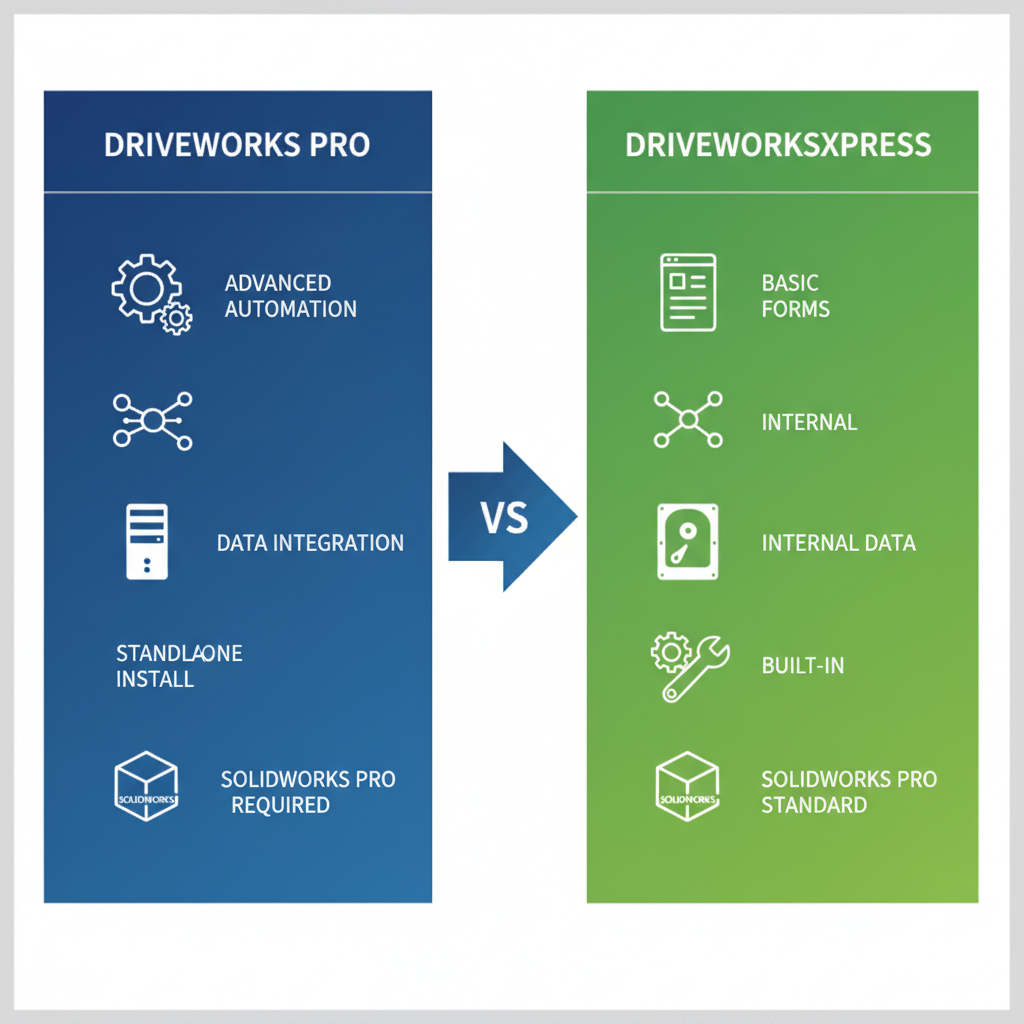
Side-by-side overview of DriveWorks Pro vs DriveWorksXpress variants
Compatibility and Multiple Version Installations
Compatibility remains a cornerstone for successful DriveWorks deployment, requiring SOLIDWORKS Standard or higher, with Pro demanding Professional or Premium for full functionality. As a design rule automation tool, it integrates well with SOLIDWORKS PDM for version control and DELMIAWorks for ERP synchronization, enhancing data flow in manufacturing pipelines. We at GSC 3D verify these alignments during pre-installation reviews, preventing disruptions in aerospace or automotive CAD workflows.
- SOLIDWORKS version: 2020 or later recommended for stability
- System requirements: Windows 10/11, sufficient RAM for complex rules
- PDM/ERP compatibility: Supported via add-ins for seamless data exchange
Multiple version installations are feasible, allowing side-by-side operation of DriveWorksXpress and Pro without conflicts, as noted in technology spotlights on CAD automation. This flexibility enables testing advanced features in Pro while maintaining legacy setups in Xpress. Our experts assist with these configurations, ensuring minimal downtime and optimal performance across your SOLIDWORKS environment.
By mastering these fundamentals, users unlock efficiency gains that propel design processes forward, setting the stage for broader benefits in automation strategies.
Key Advantages of DriveWorks Pro Over DriveWorksXpress
At GSC 3D, we help manufacturers unlock the full potential of SOLIDWORKS automation tools. DriveWorks Pro stands out as a robust solution for scaling design processes, particularly when compared to the more basic DriveWorksXpress. Our expertise in implementing these systems ensures seamless transitions that align with your engineering workflows and business goals.
Enhanced Features and Functionality in DriveWorks Pro
DriveWorks Pro offers advanced CAD automation capabilities that far exceed the foundational tools in DriveWorksXpress. Key enhancements include API access for custom integrations and external data rules that pull from databases beyond SOLIDWORKS files. This allows for dynamic model generation based on real-time inputs, such as customer specifications or inventory levels. We at GSC 3D leverage these features in our deployments to create sophisticated rule sets with loops and conditional logic, enabling complex product configurations without manual intervention.
In contrast, DriveWorksXpress relies on simpler form-based inputs tied to internal data, limiting its scope for intricate designs. Pro’s support for PDM integration streamlines file management, while simulation tool compatibility ensures designs meet performance criteria early. Our clients in automotive manufacturing use these functionalities to automate variant creation, reducing repetitive tasks and fostering innovation. Through our DriveWorks automation services, we tailor these features to fit specific needs, providing training via bootcamps to maximize adoption.
When evaluating automation options, consider how features align with your operational complexity. The following table highlights core differences to guide your decision on upgrading for more versatile workflow configuration tools.
| Feature | DriveWorks Pro Benefits | DriveWorksXpress Limitations |
|---|---|---|
| Data Integration | Supports external databases and ERP like DELMIAWorks for dynamic configurations | Limited to SOLIDWORKS internal data only |
| Rule Complexity | Advanced rules with loops, conditions, and APIs for complex products | Basic if-then rules without advanced logic |
| Licensing | Perpetual or subscription with multi-user support | Free but single-user, tied to SOLIDWORKS license |
This comparison underscores DriveWorks Pro’s scalability for enterprises handling diverse product lines. For instance, integrating with ERP systems like DELMIAWorks allows real-time data synchronization, a capability absent in Xpress, enabling our clients to manage larger teams and projects efficiently. At GSC 3D, we assess these aspects during consultations to recommend the best path forward.
Real-World Benefits for Manufacturing Workflows
In manufacturing environments, DriveWorks Pro delivers tangible improvements in efficiency and collaboration. One major advantage is the automation of variant design, where teams can generate hundreds of configurations from a single master model, saving hours on manual adjustments. Our implementations in industrial equipment sectors demonstrate how this reduces design cycles, allowing engineers to focus on innovation rather than repetition.
We integrate DriveWorks with PDM and ERP systems to create cohesive workflows that minimize errors and enhance data accuracy. For electronics manufacturers, this means faster prototyping with synchronized bill of materials updates. Drawing from industry solutions for machinery, Pro excels in automating complex assemblies, such as customizing machine components based on external parameters. At GSC 3D, our tailored integrations have helped clients streamline operations across automotive and electronics fields.
- Accelerated time-to-market through automated rule-driven designs.
- Improved team productivity with multi-user access and version control.
- Enhanced compliance via integrated simulation checks during configuration.
These benefits position DriveWorks as a cornerstone for scalable automation, and our bootcamps equip teams to implement them effectively.
Comparing Limitations and Upgrade Paths
DriveWorksXpress serves as an entry-level tool, ideal for simple automations, but its limitations become evident in growing operations. Restricted to basic if-then rules and SOLIDWORKS-internal data, it struggles with multi-user environments or external integrations, often leading to workflow bottlenecks. For manufacturers expanding into complex variants, these constraints hinder scalability.
Upgrading to DriveWorks Pro addresses these gaps with flexible licensing options, including subscriptions that support concurrent users. This shift enables advanced logic for intricate products, integrating seamlessly with tools like DELMIAWorks for end-to-end automation. We at GSC 3D guide clients through this process, offering assessments to evaluate ROI based on their current setups. In automotive implementations, we’ve seen smoother transitions to Pro, unlocking features like API-driven customizations.
Our consulting services highlight the value of this upgrade, focusing on qualitative gains such as reduced design redundancy and better resource allocation. For electronics firms, Pro’s PDM compatibility ensures data integrity across projects. Contact us for a personalized evaluation to explore how DriveWorks Pro can transform your SOLIDWORKS workflows, including potential solidworks hardware savings through optimized configurations. Results vary by implementation; our team provides detailed support to achieve your goals.
Implementing DriveWorks in Your SOLIDWORKS Workflow
At GSC 3D, we specialize in streamlining manufacturing processes through advanced automation tools like DriveWorks. This section outlines practical steps for incorporating DriveWorks and DriveWorksXpress into your SOLIDWORKS environment, drawing on our expertise in gsc 3d manufacturing solutions to enhance efficiency. Whether you’re starting with basic automation or scaling to enterprise integrations, our guidance ensures seamless adoption.
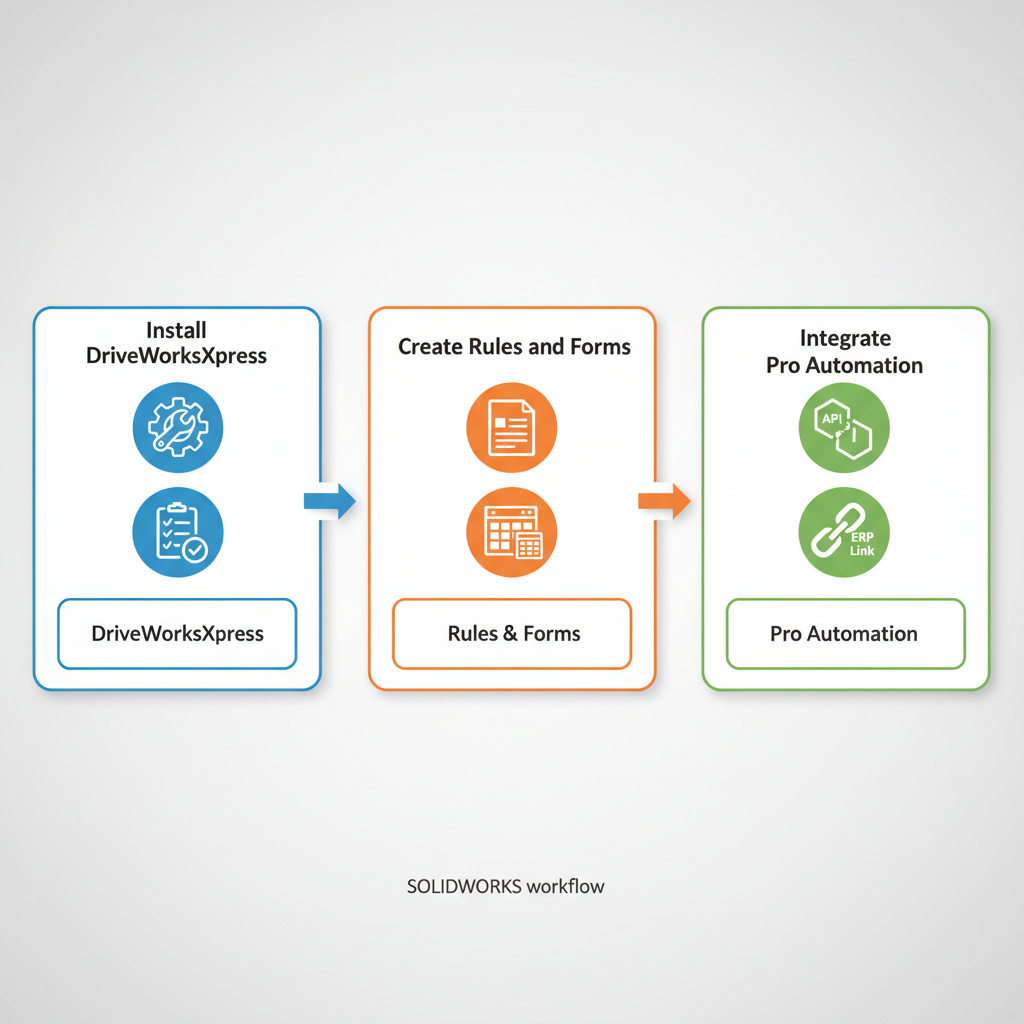
Step-by-step DriveWorks integration into SOLIDWORKS workflow
The diagram above visualizes the core implementation phases, from installation to advanced synchronization, helping teams visualize their path to automated design generation.
Step-by-Step Guide to DriveWorksXpress Usage
We recommend beginning with DriveWorksXpress, a free SOLIDWORKS add-in that introduces basic automation capabilities. To install DriveWorksXpress, first ensure your SOLIDWORKS version is compatible–typically 2020 or later. Download the installer from the official DriveWorks site, then launch SOLIDWORKS and navigate to Tools > Add-Ins. Select DriveWorksXpress and enable it; the interface will appear in the Tools toolbar upon restart.
Once installed, create your first rule set. Open a master model in SOLIDWORKS, then access the DriveWorksXpress Rules task pane. Define variables for dimensions, such as part length or material type, using simple equations like Length = InputValue * 2. Test the automation by generating variants: input different values to produce updated drawings automatically. For example, automate a bracket design where hole patterns adjust based on size inputs, reducing manual edits by up to 50% in repetitive tasks.
Troubleshooting tip: If rules fail to capture, verify feature suppression settings. We offer hands-on support through our SOLIDWORKS CAD Manager’s Bootcamp to master these fundamentals without common pitfalls. This SOLIDWORKS add-in implementation lays the foundation for scalable workflows, as highlighted in best practices from the 3DEXPERIENCE World 2025 event discussions on efficient automation setups.
Integrating DriveWorks Pro with SOLIDWORKS and Beyond
DriveWorks Pro elevates automation by integrating deeply with SOLIDWORKS and external systems. We guide clients through configuring DriveWorks Pro as an advanced add-in, enabling automated design generation across complex assemblies. Start by activating the Pro module within SOLIDWORKS, then link it to your PDM vault for version-controlled rule deployment.
For broader integration, connect DriveWorks Pro to ERP systems like DELMIAWorks, automating order-to-design workflows. For instance, import customer specs from ERP databases to trigger SOLIDWORKS configurations, generating quotes and models in one flow. Beyond CAD, tie it to simulation tools for fatigue analysis or Markforged 3D printing for rapid prototyping of variants.
In practice, a client in the automotive sector used DriveWorks Pro to synchronize with our DELMIAWorks integration services, cutting configuration time from hours to minutes. Event insights from 3DEXPERIENCE World 2025 emphasize such ERP ties for manufacturing agility. Our driveworks implementations ensure compatibility with simulation and additive manufacturing, fostering end-to-end efficiency. Limit rule complexity initially to avoid overload–our training programs provide tailored strategies.
Upgrade and Installation Considerations
Upgrading from DriveWorksXpress to Pro is straightforward with our GSC 3D support. Begin by backing up your Xpress rules, then install Pro via the unified DriveWorks setup wizard. It detects existing data and migrates rules seamlessly, supporting multi-version SOLIDWORKS installs without conflicts–ideal for phased rollouts.
Consider licensing: Pro requires a subscription, which we manage as a trusted SOLIDWORKS reseller. For multi-site deployments, ensure network licensing aligns with your PDM setup. Installation on multiple machines involves deploying via admin images, with our teams handling custom configurations.
Key tip: Test upgrades in a sandbox environment first to validate integrations like Markforged 3D printing queues. We provide comprehensive support, including on-site assistance, to address compatibility issues. Drawing from 3DEXPERIENCE World 2025 best practices, prioritize data migration planning for uninterrupted workflows. Contact us for personalized deployment details, as results vary by setup–our bootcamps equip teams for success. This approach maximizes subscription benefits while minimizing downtime.
Optimizing DriveWorks for Maximum Efficiency
At GSC 3D, we have guided numerous manufacturers through refining their DriveWorks implementations to achieve seamless SOLIDWORKS automation. Drawing from our consulting and training expertise, this section shares strategies to enhance efficiency, avoiding common hurdles while leveraging advanced capabilities. Our focus on scalable setups ensures long-term productivity gains in demanding manufacturing environments.
Essential Prerequisites and Setup Best Practices
In our experience with DriveWorks deployments, starting with the right foundation is crucial for successful automation. First, verify that your team has access to SOLIDWORKS Premium, as it is required for full DriveWorks Pro functionality; attempting to run advanced features without it often leads to compatibility issues. We recommend conducting a thorough system audit before installation, including checking hardware specifications for optimal performance.
Here are key prerequisites and setup tips:
- Install DriveWorksXpress for initial testing: Ideal for basic setups, DriveWorksXpress allows quick prototyping without overwhelming complexity. Begin with simple rules to familiarize your team.
- Adopt modular rule design: Break down automation rules into reusable components to improve maintainability and reduce debugging time.
- Avoid common pitfalls: Skipping version compatibility checks can cause crashes; always align DriveWorks with your SOLIDWORKS release. In our bootcamps, we emphasize backing up configurations early to prevent data loss during setup.
By prioritizing these steps, manufacturers can establish optimized CAD configurations that scale with production needs. We often see teams overlook error handling in initial phases, so integrate basic validation rules from the start to catch issues proactively. This approach, honed through our SOLIDWORKS training programs, sets the stage for efficient automation rules.
Leveraging DriveWorks Pro Features Effectively
DriveWorks Pro unlocks powerful tools for complex manufacturing automations, and in our consulting work, we stress strategic utilization to maximize its potential. Focus on features like dynamic rules and variant generation to streamline design iterations, particularly in machinery sectors where custom configurations are routine.
Pro tips for effective use include:
- Harness form builders for user inputs: Create intuitive interfaces that guide non-experts through automation, reducing training demands.
- Incorporate simulation tie-ins: Link DriveWorks outputs to SOLIDWORKS Simulation for real-time validation, ensuring designs meet performance criteria before production.
- Tune performance with API extensions: For advanced users, API calls enable custom scripting that handles intricate logic beyond standard rules.
During our SOLIDWORKS CAD Manager’s Bootcamp, participants learn to avoid overcomplicating rules, which can slow processing. Instead, prioritize efficient automation rules that adapt to evolving product lines. As AI augments CAD tools, integrating predictive elements in DriveWorks can future-proof your workflows, a trend we discuss in our training sessions. These practices, drawn from industry-specific applications, help manufacturers achieve robust, maintainable systems without unnecessary overhead.
Integration and Multi-Version Management Tips
Seamless integrations elevate DriveWorks from a standalone tool to a core workflow enabler, and at GSC 3D, our DELMIAWorks integration expertise has proven invaluable for synchronized manufacturing operations. For ERP connectivity, map data fields carefully to avoid synchronization errors, and test bidirectional flows to ensure real-time updates between SOLIDWORKS and your DELMIAWorks system.
Effective tips for integrations and versions:
- Synchronize with PDM systems: Use DriveWorks APIs to pull metadata from SOLIDWORKS PDM, automating file approvals and revisions.
- Manage multiple versions strategically: Yes, you can install coexisting DriveWorks versions for testing; isolate them in virtual environments to prevent conflicts. This allows safe experimentation with updates without disrupting live operations.
- Handle errors in multi-version setups: Implement version-specific rules and logging to track discrepancies, a best practice from our simulation support services.
Warning: Neglecting API security in integrations can expose data vulnerabilities; always apply authentication layers. In machinery applications, these strategies facilitate efficient ERP synchronization, enhancing traceability. We invite teams facing integration challenges to join our bootcamps for hands-on guidance on optimized setups. By refining these areas, manufacturers position themselves for scalable, future-ready automation.
Choosing the Right DriveWorks Solution for Your Needs
As your trusted partner in SOLIDWORKS automation, we at GSC 3D have explored the fundamentals of driveworks, its benefits for streamlining design processes, and best practices for successful implementation. DriveWorks empowers manufacturers to automate repetitive tasks, reduce errors, and enhance productivity through seamless integration with SOLIDWORKS. Whether upgrading from basic tools or starting fresh, our expertise ensures smooth deployment, including prerequisites like compatible SOLIDWORKS versions and potential ties to ERP systems via DELMIAWorks integration.
To select the ideal solution, consider your business needs: DriveWorksXpress suits small teams with straightforward automation, while DriveWorks Pro excels for larger operations requiring advanced rules, multi-level configurations, and complex integrations. Evaluate factors such as team size, automation complexity, and scalability requirements. Pro offers superior advantages in customization and collaboration, making it ideal for enterprise-level efficiency.
We invite you to leverage our tailored automation solutions, including solidworks simulation support and SOLIDWORKS CAD Manager’s Bootcamp training, to optimize your workflows. Contact us today for a consultation or bootcamp session; our nationwide support team is ready to guide you toward the right DriveWorks efficiency tools and lasting partnership today.
Resources


Companies that trust GSC