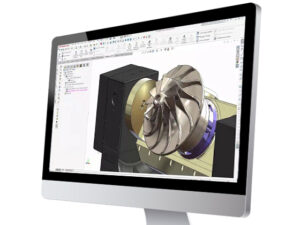
Enhancements for Engineers & Designers
And how they work better together across the SOLIDWORKS suite
Every year, Dassault Systèmes ships hundreds of customer-driven improvements to the SOLIDWORKS platform. In 2026, the focus landed squarely on three pillars: artificial intelligence, performance at scale, and visual fidelity. But here’s what the release notes don’t always surface — these enhancements are exponentially more powerful when used across the full SOLIDWORKS suite. Whether you’re running CAD alongside Simulation, PDM, Electrical, or Visualize, these five features are designed to compound value across every product in your toolbox.
Below, we break down the five most impactful updates in SOLIDWORKS 2026, with a hard look at how each one integrates with the rest of the suite — so you can make the most of every license on your network.
ENHANCEMENT #1 — ARTIFICIAL INTELLIGENCE
#1
AI-Powered Auto-Generate Drawings with LEO & AURA
If there’s one feature that defines SOLIDWORKS 2026, it’s the new AI-driven Auto-Generate Drawing command — and the two intelligent assistants powering it: LEO and AURA. This is not a simple macro or template; it’s a genuine AI layer that observes your geometry, understands your intent, and produces complete 2D drawing sheets with minimal human input.
What it does
With a single click of the Auto-Generate Drawing command, SOLIDWORKS 2026 automatically creates fully populated 2D drawing sheets for parts and assemblies. The AI selects the appropriate sheet format and sheet size based on the model’s bounding box, arranges standard orthographic views to prevent overlap, identifies hole types (countersinks, counterbores, tapped holes) and applies accurate hole callouts, and proposes dimensioning based on design intent captured in the model.
LEO handles the “instruction layer” — you can configure the AI with natural-language inputs specifying drawing standards (ASME, ISO, DIN), preferred sheet sizes, and templates. AURA is the conversational assistant that helps you refine and iterate on generated output. The setup is described as plug-and-play with a roughly 10-minute configuration via your SOLIDWORKS login, though mastering the AI refinement workflow may take a few days of practice.
Key benefits for engineers
- Eliminates the most time-consuming, low-value task in the CAD workflow — creating baseline drawings from scratch.
- Dramatically reduces time-to-documentation, especially for complex assemblies with dozens of components.
- Auto hole recognition works on both native SOLIDWORKS geometry and imported models — no rebuild required.
- Configurable to your company’s drawing standards, sheet sizes, and title block templates.
| 🔗 Multi-License Advantage: CAD + PDM When Auto-Generate Drawing is paired with SOLIDWORKS PDM, your auto-created drawings are automatically checked into the vault with revision tracking, approval workflows, and change history — all without manual intervention. Teams working on shared assemblies in PDM Professional can now go from 3D model to a vault-controlled, revision-stamped drawing set in minutes. This is where the real productivity multiplier lives: AI creates the drawing, PDM manages its lifecycle, and your team never loses a revision. |
ENHANCEMENT #2 — PERFORMANCE
#2
Assembly Performance Overhaul & Background Import Processing
Large assemblies have always been a pain point in SOLIDWORKS — and in 2026, Dassault Systèmes addresses it with architectural-level performance improvements. The two biggest wins: background import processing and cosmetic change decoupling from rebuilds.
Background Import Processing
SOLIDWORKS 2026 introduces the Import Model as Background Process task pane. When opening large STEP, IGES, Parasolid, or other foreign-format files, the import now runs in a background thread, leaving your workstation fully interactive. You can keep sketching, editing features, or running mates on other parts while the import completes — and a system notification alerts you when the file is ready to use.
For teams regularly working with supplier-provided geometry (which often arrives as neutral-format files), this change alone can reclaim hours of idle time per week.
Cosmetic Changes No Longer Trigger Rebuilds
Previously, changing a component’s display state, color, appearance, or transparency in a large assembly would force a full model rebuild — even though the geometry hadn’t changed. In SOLIDWORKS 2026, cosmetic changes are fully decoupled from the rebuild engine. Appearance edits are now instantaneous, which is especially impactful in assemblies with hundreds or thousands of components.
Multi-Body Selection Filters
In multi-body part environments, a new filter system lets you select bodies based on size or volume thresholds. This makes it far faster to isolate, suppress, or delete small bodies (like machining remnants or thin chips) from complex imported geometry without scrolling through a massive Feature Manager tree.
| 🔗 Multi-License Advantage: CAD + Simulation + PDM Assembly performance improvements cascade across the entire suite. In SOLIDWORKS Simulation, faster assembly load times mean study setup is no longer blocked by import waits. Analysts can iterate between design and structural/thermal study runs more rapidly. In PDM, background imports reduce the bottleneck when checking out large assemblies for editing — the vault doesn’t lock your workstation while geometry resolves. For teams where mechanical designers, simulation engineers, and data managers share the same assembly files, this translates directly into shorter design cycle times. |
ENHANCEMENT #3 — VISUAL QUALITY
#3
DSPBR Physically Based Rendering & Direct Visualize Integration
SOLIDWORKS 2026 takes a major leap in visual fidelity with native support for DSPBR — Dassault Systèmes Physically Based Rendering — materials. Physically based rendering (PBR) is the industry standard for photorealistic visualization, and SOLIDWORKS now speaks that language natively, with a direct pipeline to SOLIDWORKS Visualize for users with that license.
What is DSPBR?
DSPBR is Dassault Systèmes’ implementation of the physically based rendering material standard. Rather than using simplified Phong or Blinn shading models, DSPBR materials describe how light physically interacts with a surface — accounting for metalness, roughness, subsurface scattering, anisotropy, and clearcoat layers. The result is materials that look objectively closer to real-world counterparts: brushed aluminum looks like brushed aluminum, polished plastic looks like polished plastic, and matte rubber looks matte.
Render Direct from SOLIDWORKS
For engineers and designers with SOLIDWORKS Visualize licenses, 2026 introduces a direct render pipeline from the CAD environment. You no longer need to export to Visualize, re-apply materials, and re-set up a scene. Materials applied as DSPBR in SOLIDWORKS carry over directly, with lighting and camera settings optionally inherited. This removes the most friction-heavy step in the product visualization workflow.
Selection Filters for Enhanced Visualization Workflow
Improved selection filters in SOLIDWORKS 2026 make it easier to isolate and assign materials to specific components in a large assembly — a critical productivity improvement when preparing complex assemblies for rendering.
| 🔗 Multi-License Advantage: CAD + Visualize + PDM The DSPBR pipeline is where CAD and Visualize truly become one environment in 2026. Engineers apply physically accurate materials inside SOLIDWORKS; designers render studio-quality images directly in Visualize without re-setup. When the model is updated in CAD, the Visualize scene updates with it — no re-linking. For teams storing assets in PDM, material libraries and rendering templates can be vaulted and shared, ensuring brand-consistent visuals across every project. The result: engineering-quality models and marketing-quality renders from a single source of truth. |
ENHANCEMENT #4 — PART DESIGN
#4
Sheet Metal & Part Modeling Improvements
SOLIDWORKS 2026 delivers a focused set of part modeling and sheet metal improvements that address long-standing friction points for mechanical designers. These aren’t sweeping architectural changes — they’re precisely targeted fixes to workflows that experienced SOLIDWORKS users use every single day.
Sheet Metal: Offset Flanges & Quick Corner Breaks
Sheet metal tools in SOLIDWORKS 2026 now support offset flanges — allowing you to define flanges that are positioned at a specified distance from the edge of a base flange, without requiring workaround sketches or auxiliary geometry. This mirrors how fabricators actually specify and cut sheet metal, and it reduces the gap between what’s designed and what’s manufactured.
Quick Corner Break is a new sheet metal-specific command that lets engineers add corner relief, chamfers, or fillets to multiple corners simultaneously — a workflow that previously required selecting and editing corners one at a time. For complex enclosures or bracket designs with many corners, this can reduce a 20-click operation to a 3-click one.
Equation Error Handling
A frustrating behavior in previous SOLIDWORKS versions: if you deleted a sketch or feature that was referenced by an equation, the equation would persist in the Equations dialog as a broken, error-producing entry — and you had no way to delete it without manually editing equation XML. In SOLIDWORKS 2026, broken equations referencing deleted geometry can be cleanly removed from the Equation Manager, eliminating a source of rebuild errors that has plagued complex parametric models for years.
Multi-Body Size/Volume Filters
As mentioned in the Assembly Performance section, new multi-body filters allow engineers to select, suppress, or delete bodies in a part file based on size or volume thresholds. This is invaluable when working with imported manufacturing geometry that contains hundreds of small bodies from machining operations or Boolean results.
| 🔗 Multi-License Advantage: CAD + Simulation + SOLIDWORKS Electrical Sheet metal improvements feed directly into the Simulation workflow: SOLIDWORKS Simulation includes dedicated sheet metal meshing that recognizes flanges, corners, and formed features. Cleaner sheet metal geometry with correct offset flanges means more accurate shell mesh generation and better structural analysis results without manual mesh manipulation. For teams using SOLIDWORKS Electrical, improved multi-body management helps when placing electrical components (DIN rails, cable trays, panel cutouts) in a 3D enclosure model that starts as a sheet metal import — keeping the ECAD-MCAD handoff clean. |
ENHANCEMENT #5 — DRAWINGS & DOCUMENTATION
#5
Drawing & GD&T Documentation Enhancements
Drawings remain the primary contractual deliverable in most manufacturing industries — and SOLIDWORKS 2026 gives them significant attention. The focus in this release is on annotation intelligence: getting GD&T and dimensions placed, aligned, and formatted faster and with fewer manual corrections.
Magnetic Lines: Expanded Annotation Support
Magnetic Lines have been in SOLIDWORKS for several releases, but in 2026 they receive a major expansion. Previously limited to specific annotation types, magnetic lines now support notes, datum symbols, surface finish symbols, weld symbols, and geometric tolerance (GD&T) control frames. This means entire annotation clusters — including related tolerances, datums, and callouts — can be aligned and snapped to a single magnetic line that moves as a group when any element is adjusted.
For drawings with dense GD&T requirements (aerospace, medical device, precision machined components), this translates to dramatically faster annotation layout and fewer manually corrected alignments after view updates.
Live Dimension Line Breaking
Dimension line breaks — where a dimension line visually “breaks” to avoid running through another annotation — now support live, interactive adjustment. Previously, break positions were fixed once applied. In SOLIDWORKS 2026, engineers can drag break positions along the dimension line in real time, allowing precise avoidance of crowded annotation areas without deleting and re-creating the dimension.
Command Search with Customizable Keywords
SOLIDWORKS 2026 enhances the command search tool with user-defined keyword mapping. Engineers can assign their own shorthand terms to any command — for example, mapping “break corner” to the Sheet Metal Corner Break command, or “gen drawing” to Auto-Generate Drawing. For teams standardizing on a shared vocabulary, this dramatically speeds up onboarding and command discovery for new users.
| 🔗 Multi-License Advantage: CAD + PDM + SOLIDWORKS Electrical Drawing documentation is the convergence point for the entire SOLIDWORKS suite. In PDM, drawing files are the primary output tracked through engineering change orders (ECOs) and approval workflows — and faster drawing creation means faster ECO cycle times. For SOLIDWORKS Electrical users, CircuitWorks in 2026 now tracks parent-child data including key pin definitions and plated/non-plated hole data, which flows into the mechanical drawing automatically as hole callouts and BOM entries. Teams can also review and undo MCAD changes before committing via the enhanced IDM 3.0 integration, preventing mismatches between the electrical schematic and the mechanical drawing package. The result is a drawing set that accurately reflects both worlds — mechanical and electrical — without manual reconciliation. |
The Compound Advantage
Why the suite matters more than the individual feature
Looked at individually, each of these five enhancements is a meaningful productivity gain. But the real argument for the SOLIDWORKS suite isn’t any single feature — it’s the compounding effect of connected tools. When Auto-Generate Drawing feeds into a PDM vault managed with revision control, and that vault is shared between a mechanical designer using CAD, a structural analyst running Simulation, and an electrical engineer in SOLIDWORKS Electrical, the whole pipeline accelerates. No re-import. No file format negotiation. No “which version is current?” email thread.
SOLIDWORKS 2026 makes each individual tool more capable — but it also deepens the integration between them. The AI in LEO knows about your templates stored in PDM. The DSPBR materials in Visualize reference the same model live in CAD. The drawing documentation enhancements reduce the bottleneck between design and manufacturing communication. This is the multi-license advantage in practice: a suite where the whole is measurably greater than the sum of its parts.
For engineering teams evaluating which 2026 features to prioritize, the highest ROI is almost always found at the intersection of tools — in the workflows that cross from one product into another. That’s exactly where SOLIDWORKS 2026 has invested.
Quick Reference: 2026 Enhancements at a Glance
| Enhancement | Suite Products | Key Benefit |
|---|---|---|
| Auto-Generate Drawings (AI) | CAD + PDM | Eliminates manual drawing creation; vault-controlled output |
| Assembly Background Import | CAD + Simulation + PDM | Non-blocking file opens; faster simulation study setup |
| DSPBR Rendering | CAD + Visualize + PDM | Photorealistic materials from CAD to render in one pipeline |
| Sheet Metal & Part Design | CAD + Simulation + Electrical | Accurate geometry for better FEA mesh & ECAD integration |
| Drawing & GD&T Docs | CAD + PDM + Electrical | Faster annotation; ECO-ready drawing sets with ECAD data |
Share
Meet the Author

view all posts by GSC
SOLIDWORKS Webinars & Power Hours